By Nsan Neji
NEW YORK (CONVERSEER) – Microsoft has responded to user feedback and will make the “AI Actions” feature in the right-click context menu of File Explorer fully selectable in the next Windows 11 update. Previously, “AI Actions” would still appear in the right-click context menu even if users had disabled the feature in system settings; this issue is about to be resolved.
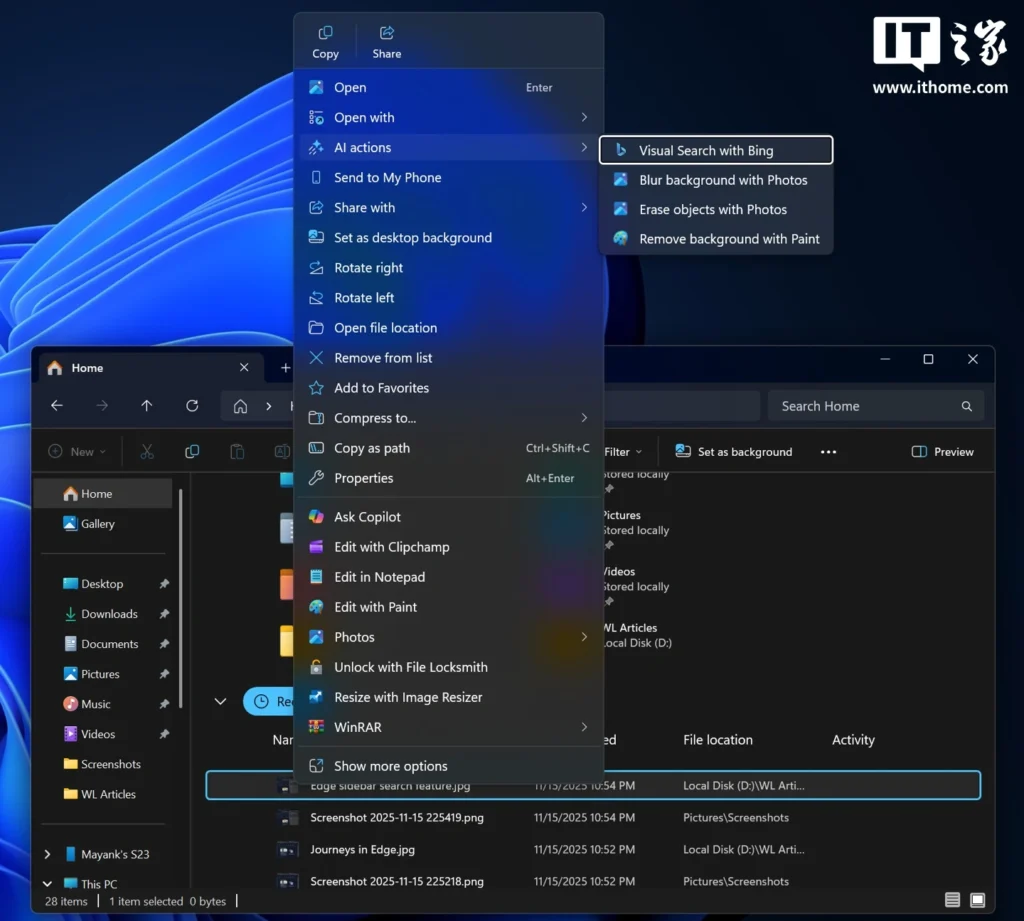
According to IT Home, “AI Actions” falls into the category of “AI functions” that offer almost no real value. It works as follows: When an image is selected and right-clicked, a submenu called “AI Actions” appears in the context menu, offering options such as blurring the image, removing objects from the image, performing a visual search using Bing, and removing the background of the selected image.
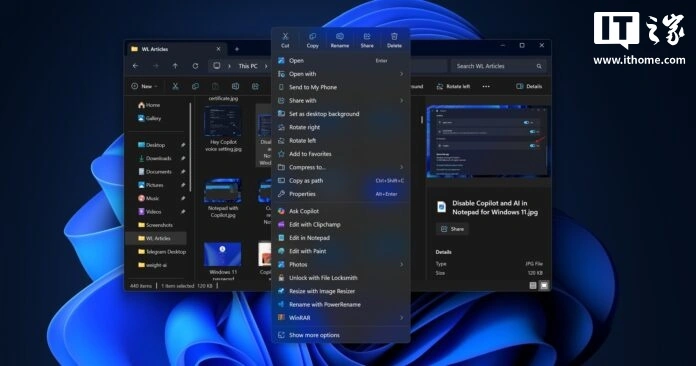
At first glance, this seems like a convenient design, and users might assume that these AI processing steps are completed directly in the right-click menu without needing to open applications like “Photos” or “Paint.” However, this is not the case.
In reality, these “AI Actions” options simply redirect users to the corresponding application (such as “Photos” or “Paint”), depending on the selected action. These tasks can already be easily completed by simply clicking “Edit in Paint” or opening the “Photos” application. Given this, why create a separate “AI Actions” entry point, merely listing the AI functions of a few built-in applications? Moreover, the “Ask Copilot” option already exists in the right-click menu, and these applications can be invoked in the future through Copilot Actions (an upcoming feature).
For now, “AI Actions” doesn’t justify taking up space in the already bloated context menu. The good news is that in the upcoming update, users will be able to completely remove it. The process is very simple: go to “Settings > Apps > Actions” and uncheck all related options, such as “Paint,” “Photos,” “Teams,” and “Microsoft 365 Copilot.”
ALSO READ: Musk denies report claiming SpaceX is raising funds at $800bn
Currently, even if users uncheck these options, the “AI Actions” main item will still appear in the menu, but its submenus will be empty, taking up space. Microsoft has now fixed this issue. According to the release notes for Windows 11 Build 26220.7344 (currently being pushed to beta users), Microsoft explicitly states: “If no AI Actions are available or enabled, this section will no longer appear in the context menu.”
In addition to making “AI Actions” optional, Microsoft is also testing a more streamlined context menu (i.e., a right-click menu). For example, options such as “Compress to…” and “Copy as path” will be moved to a new submenu called “Manage file,” which also integrates compression format options such as TAR, RAR, and ZIP. This will significantly reduce menu clutter and make the overall visual experience more compact.
In addition, Microsoft has consolidated all OneDrive-related options (such as “Always keep on this device” and “Free up space”) under a single “OneDrive” main item, further simplifying the menu structure.